MCP
Understand how MCP lets external AI assistants — Claude.ai, Claude Code, Cursor, ChatGPT — connect to your DynoWeb store and act on your behalf.
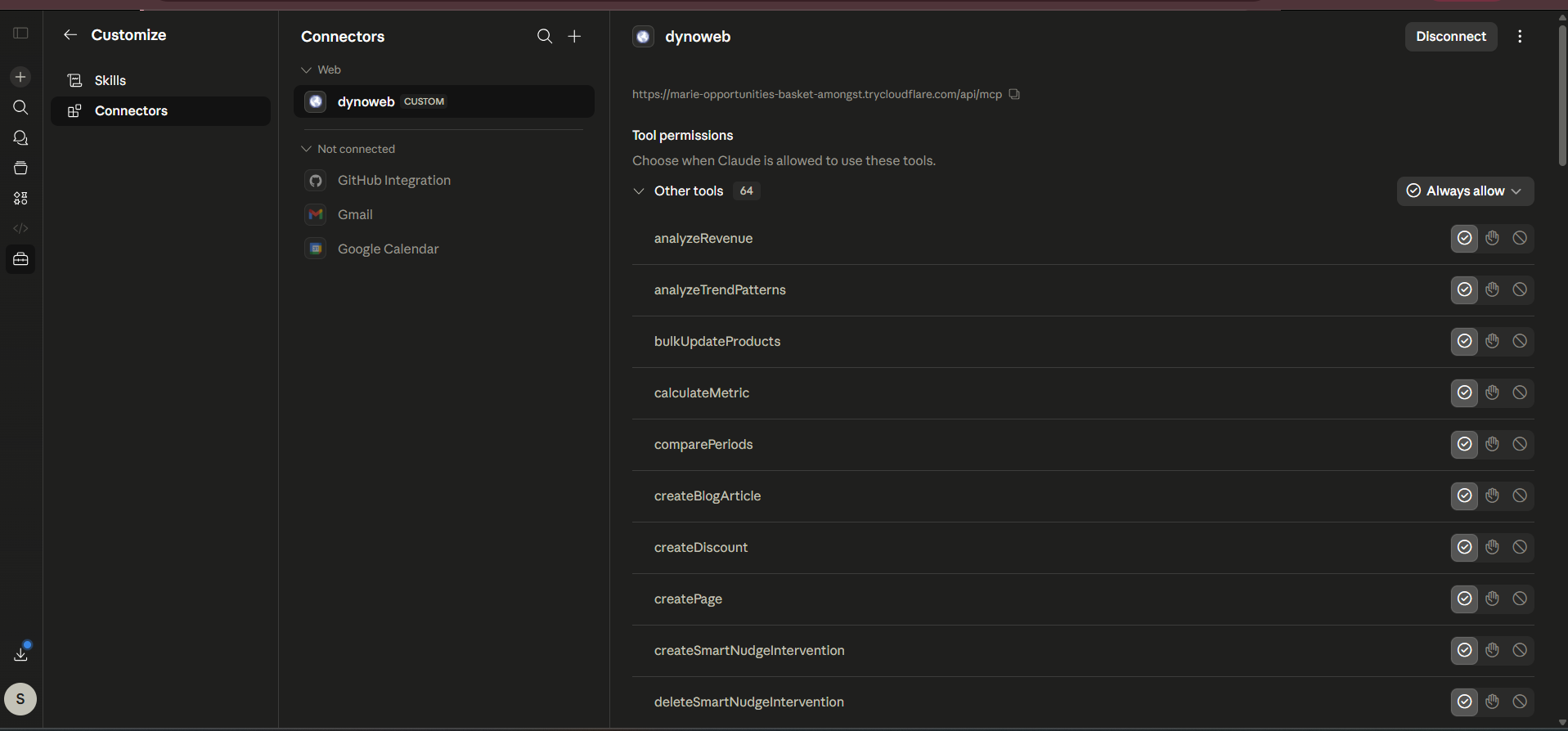
DynoWeb's MCP (Model Context Protocol) server lets any MCP-compatible AI assistant connect to your store. Once connected, the AI can read your store's behavior data and run real Shopify actions on your behalf — using the same toolset the in-app DynoAgent uses.
What It Does
MCP (Model Context Protocol) connects your DynoWeb store to outside AI assistants — Claude.ai, Claude Code, Cursor, and ChatGPT. Once connected, those AIs can read your store's behavior data and run real Shopify actions on your behalf, using the same toolset as the in-app DynoAgent.
It is available on every plan, including Free, so any merchant can start asking questions about their store from their preferred AI tool.
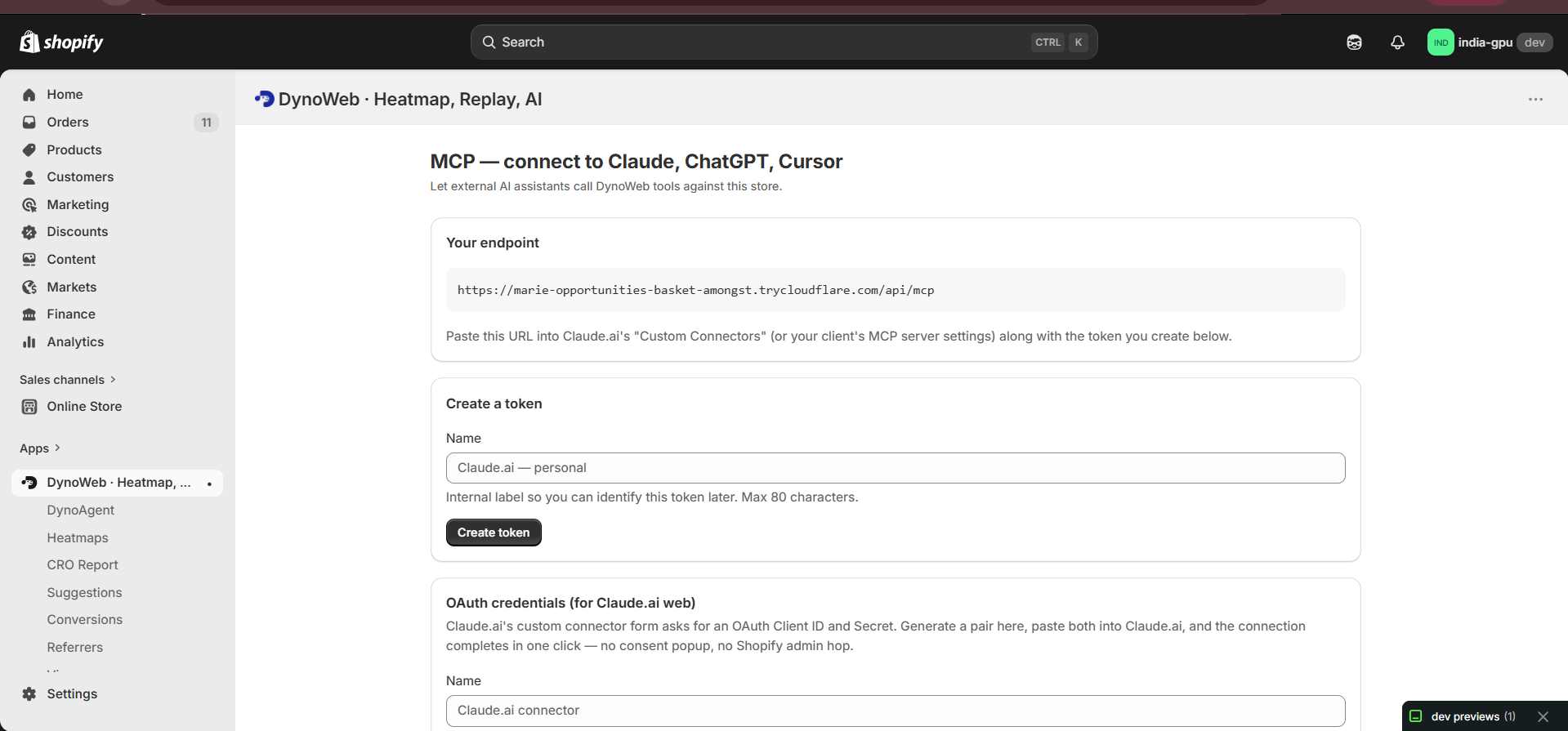
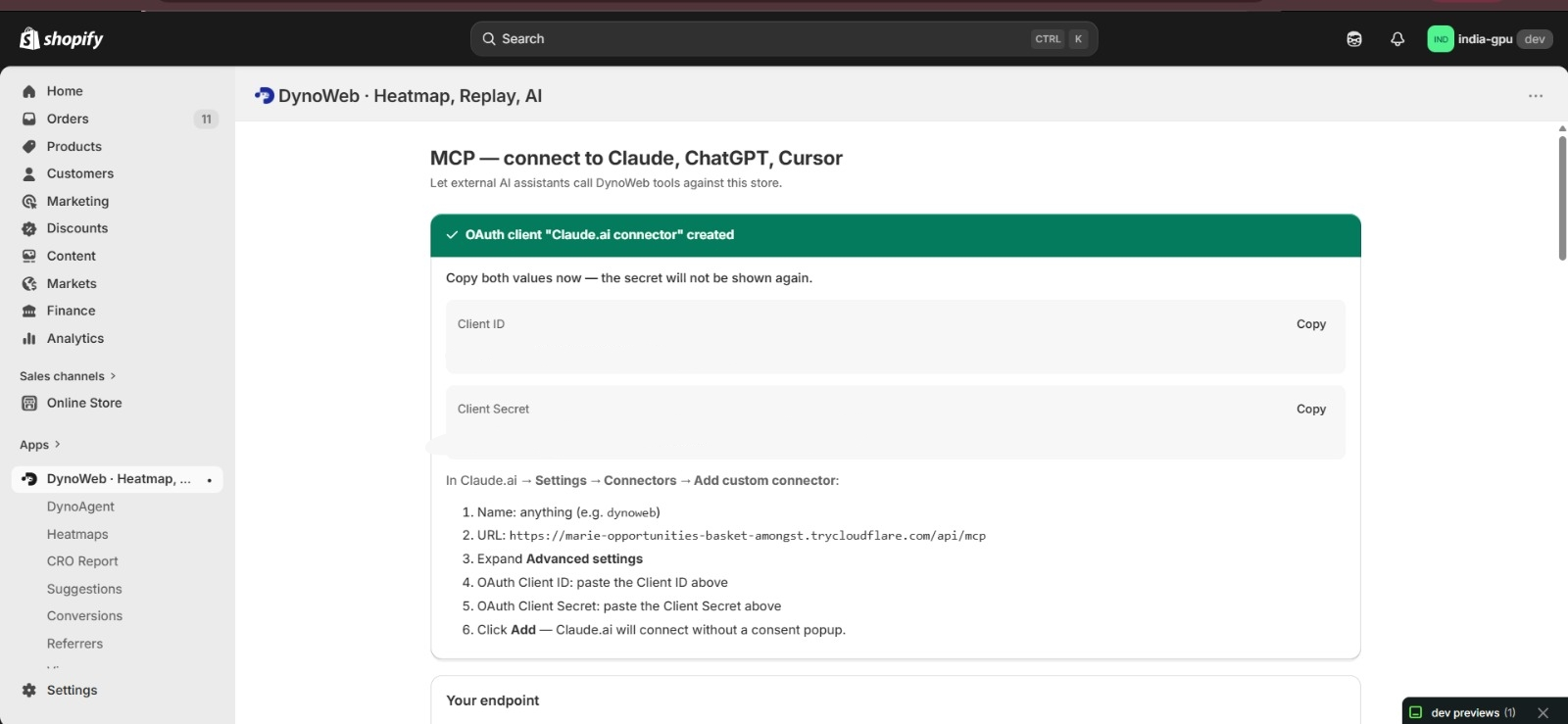
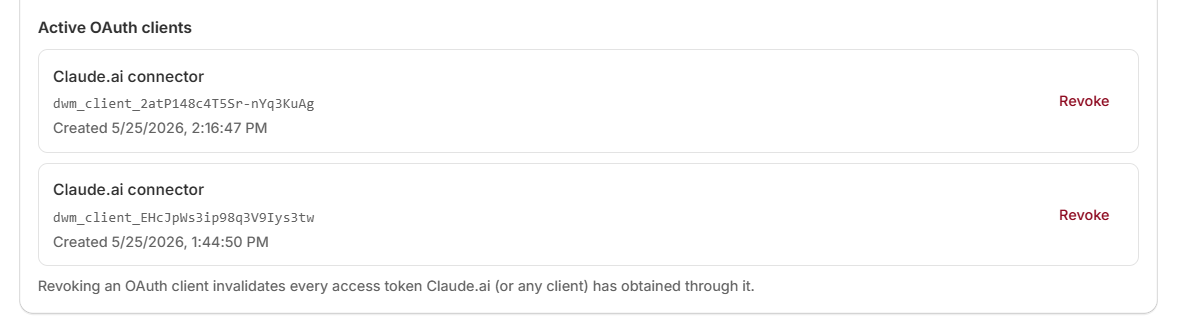
The connection is established from your DynoWeb admin's MCP page, where you generate either an OAuth credential pair (for Claude.ai web) or a bearer token (for every other client). You paste those into your AI tool, and the connection completes.
What Users Can Do With It
- Ask Claude or ChatGPT "why did revenue drop on Tuesday?" and get a real, data-grounded answer
- Update product prices, publish blog posts, or create discounts directly from a chat prompt
- Get a session-by-session breakdown of checkout friction without leaving the AI chat
- Generate and publish SmartNudge interventions through the AI
- Build a Custom GPT in ChatGPT that's purpose-built around their store
- Drive their store from a developer terminal via Claude Code or Cursor
- Run the MCP Inspector to test tools directly before connecting them to a chat client
- Revoke any token or OAuth client instantly from the MCP page
- Audit every action the AI has taken via the audit log
- Issue separate credentials per AI tool so they can be revoked individually
How To Use It Best
Open the MCP page in the DynoWeb admin and pick the right credential for your AI tool — OAuth for Claude.ai web, a bearer token for everything else. The page shows the exact paste-ready snippet for each supported client.
Create a separate credential per AI tool you connect. If one is ever compromised or unused, revoke just that credential and the rest keep working.
Use the AI to ask questions about your data and propose changes before running write operations. The AI will explain what it's about to do — review the plan, then approve. This keeps you in control of anything that touches your live store.
Don't share credentials. Each token is shown once on creation; copy it immediately. If it's ever lost, revoke and reissue rather than trying to recover it.
Plan Note
MCP is available on every plan. Daily call quotas scale with your tier — Free and Growth get 500 calls per day, Pro gets 1,500, and Custom gets 5,000. If you need more, email help@dynoweb.app for a custom quota.